
While it looks like a severe software compilation fault, this error code boils down to a failure in communication between your local application and Arlo’s main cloud database.
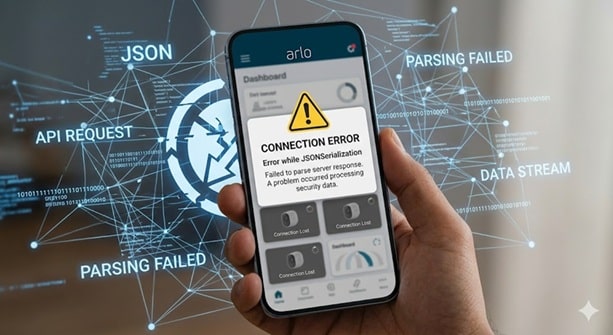
How to Fix the “Arlo Error While JSONSerialization” App Glitch
Few things are more frustrating than trying to check your home security cameras only to be blocked by an obscure, technical pop-up message. If your screen suddenly reads “Error while JSONSerialization” on your iPhone, iPad, or Android app, you aren’t alone. This specific roadblock completely prevents users from logging into the Arlo Secure platform, leaving home security grids temporarily dark.
While it looks like a severe software compilation fault, this error code boils down to a failure in communication between your local application and Arlo’s main cloud database. In this comprehensive guide, we will break down exactly what causes this serialization breakdown and provide proven, step-by-step methods to get your live feeds back online.
Understanding the Root Cause: What is JSONSerialization?
To fix the issue effectively, it helps to understand what is happening under the hood. JSON (JavaScript Object Notation) is the standard formatting language that your Arlo smartphone app uses to converse with Arlo’s cloud servers.
🔄 What “Serialization Failure” Actually Means
When you enter your username and password, the app converts that data into a JSON string to transmit it safely over the web. When the server replies with your account data, your app attempts to parse it back into viewable components. If the data sent back is corrupted, intercepted, or contains a bad network gateway message (like an unexpected 500 Internal Error code instead of pure text data), the app breaks down and triggers the JSONSerialization error.
Also Read : How to Fix Power Microsoft BI Outage
The fault rarely points to a hardware failure with your Arlo Pro, Essential, or Floodlight cameras. Instead, the primary culprits behind this broken chain of communication include:
- Arlo Cloud Outages: Global AWS or regional server-side drops sending unexpected data formats.
- Corrupted Application Cache: Corrupt authentication tokens sitting on your local device.
- Network Handshake Filters: ISPs or home gateways blocking API communication pathways.
- Outdated App Versions: Discrepancies between modern backend security profiles and older app builds.
Diagnostic Matrix: Where is the Error Occurring?
Before changing deep settings, utilize this matrix to isolate the breakdown point based on your environmental symptoms:
| Symptom Profile | Likely Cause | Immediate Remedy |
|---|---|---|
| Fails across App & Web Browser | Arlo Mainframe Server Outage | Check Downdetector status; wait out server resolution. |
| Fails on Mobile App but works on PC | Corrupt Local Session Token | Deep-delete the app, clear storage cache, and reinstall. |
| Fails only on Home Wi-Fi Network | ISP Gateway / DNS Blockage | Power cycle router; test connection using cellular data. |
| Fails during 2FA Setup Setup Steps | Account Profile Sync Conflict | Verify profile username matches the email address exactly. |
Step-by-Step Guide to Resolving the Serialization Error
Follow these practical troubleshooting procedures sequentially to identify and eliminate the underlying platform conflict.
Step 1: Check for Global Server Drops
Before resetting your configurations, verify if the breakdown is external. When Arlo or its underlying cloud platform infrastructure suffers an outage, its database endpoints throw standard web errors (like a 500 Internal Error status). The app cannot convert this standard web code into its expected data format, triggering the breakdown message.
Visit third-party monitoring services like Downdetector or the official Arlo Status dashboard to see if an active outage is underway. If an active incident is posted, no steps on your device will fix it; you must wait until engineers bring the API clusters back online.
Step 2: Execute a Clean Application Storage Flush
If the server cloud is green but your mobile phone remains stuck, old or malformed token configurations inside your device’s storage library are likely corrupt. Simply closing the application window isn’t enough; you must wipe the local cache files.
Step 3: Bypass Local ISP Gateway Protocols
In several confirmed tracking cases, certain home network providers (notably T-Mobile Home Internet and specific regional mesh systems) block API handshake packets destined for secure external servers like ocapi-app.arlo.com.
- Turn off your smartphone’s Wi-Fi radio entirely and activate pure cellular data (LTE/5G).
- Force-quit the Arlo Secure App and relaunch it on the cellular channel.
- If your app signs in immediately, your home wireless gateway is filtering the security keys. Restart your router or change its DNS settings to Google Public DNS (
8.8.8.8) to remedy the block.
Expert Optimization Tips to Prevent Future Glitches
Maintain long-term stability and keep your authentication processes clean by implementing these proactive tips from field specialists:
Enforce Single-Identity Username Matching
Ensure the contact email record assigned inside your primary Arlo administrative center is completely identical to your chosen login Username. If you have extra users or shared access accounts configured, ensure no duplicate accounts share the exact same email address string. Clear out any trailing spaces before or after your text input fields inside the app forms.
Frequently Asked Questions
Q: Does this serialization error mean my cameras are stopped recording?
A: No. Your Arlo Smart Hub and base cameras continue tracking motion and saving data to local storage or cloud logs. The error simply blocks your phone’s screen view portal from authenticating and showing the interface.
Q: Why does the web interface on my PC show an unknown HTTP failure at the same time?
A: This confirms a server-side problem. Desktop browsers express broken data transmissions via errors like “HTTP failure response”, whereas your mobile operating system converts that exact same system break into a “JSONSerialization” notice.
Q: Will resetting my base station fix a serialization issue?
A: Generally, no. Avoid pin-hole factory resets on your physical hub hardware, as this wipes out your paired camera configuration arrays. Focus your troubleshooting purely on app cache data and network routing channels first.
Still Experiencing Issues?
If none of these troubleshooting layers clear the screen banner, submit a diagnostic ticket directly to the engineering team via your main Arlo account portal.
Contact Arlo Support Support

Pingback: UAE Pass Rental Credit Check Guide - Tech Tips, Guides and Support
Pingback: Fix Delta 04 Division 2 Maintenance Error & Check Status Server - Tech Tips, Guides and Support